Groupboss + Mailchimp: Capture Facebook Group Leads the Right Way
Learn how to connect Groupboss with Mailchimp. Turn Facebook Group members into subscribers with full consent, plus an automated welcome journey.

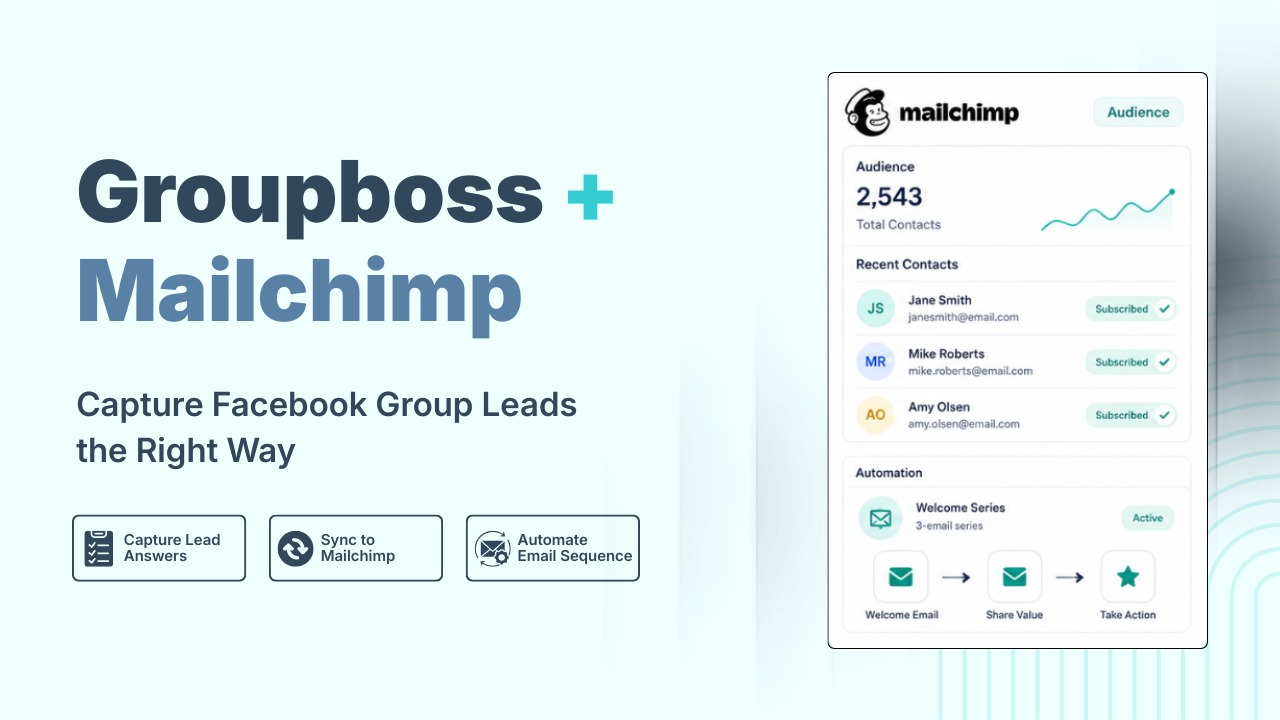
Your Facebook Group is full of active members who chose to join your community. When new members answer your membership questions and give you their email addresses, you get some of your best leads without spending money on ads.
However, copying and pasting these emails into your marketing tool takes time and can slow you down. To make lead generation easier, set up Groupboss to send new contacts straight to Mailchimp. This way, you save time and reach out while people are still interested.
Let’s get started and see how it works.
Why Facebook Group Leads Are a Great Fit for Mailchimp
The users of the Facebook Group are not any random subscribers. They requested to be part of your community. Answered queries regarding membership. Many gave their e-mail address without you paying a penny for ads.
That is an audience that Mailchimp rewards. According to Mailchimp, users of automated flows have generated up to 9 times the revenue from bulk emails than those who have not. The welcome journey arrives at the sweet spot of someone who just joined your group.
There is one catch, however. Not everything that is warm is compliant. If you have someone join your group, it doesn't make them a fair game Mailchimp. We'll correct that in a few minutes, but it's important to know before you plug something in.
Groupboss and Mailchimp: The Two Tools Behind This Workflow
Mailchimp
Mailchimp is one of the most recognized email platforms out there. You create your subscriber list, create e-mails and create automated journeys that trigger according to what people do, e.g., when they are added to your audience.
What's coming in handy the most is the drag-and-drop automation builder, which wasn't just renamed as Customer Journey Builder, but has been renamed to Marketing Automation Flows in 2025. You create a trigger, add a few emails with a delay in between and Mailchimp takes care of the sending.
Groupboss
Groupboss is a Chrome extension for Facebook Group admins to generate leads. When someone requests to join your group, Facebook lets you ask up to three membership questions. The majority of admins opt to collect email addresses with a single.
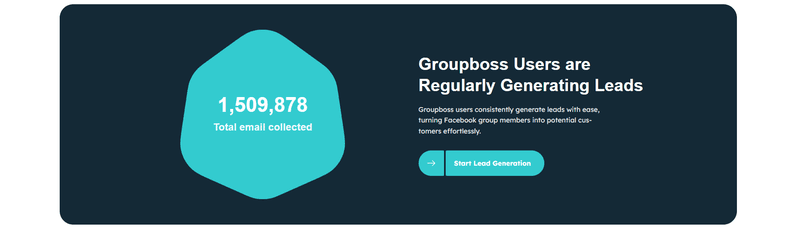
Once you click “Approve by Groupboss” it saves the member's name and e-mail and uploads it directly to Mailchimp via a direct API connection. No spreadsheets. No copy-pasting. No Zapier.
Together, the two tools turn your Facebook Group into a self-feeding email list.
How to Connect Groupboss with Mailchimp
Connecting the two tools takes about 5 minutes. You can find the full Mailchimp help guide on this link. Here's the short version.
Step 1: Get your Mailchimp API key
Log into Mailchimp account. Click your profile icon, choose Profile, then open the Extras menu and select API keys.
Click "Create A Key" and copy it, including the part after the dash, like -us21. You'll only see the full key once.
Step 2: Get your Audience ID
Go to Audience, then Settings, then Audience name and defaults. Your Audience ID (sometimes called List ID) is listed on the first section of that page.
Step 3: Get your Tag Name
Go to Audience, then click Tags below the Audience. If you don't have created tags already, then create a Tag.
Step 4: Connect inside Groupboss
Open the Groupboss Chrome extension. Select the Facebook Group you want to connect to, then go to Autoresponder and choose Mailchimp.
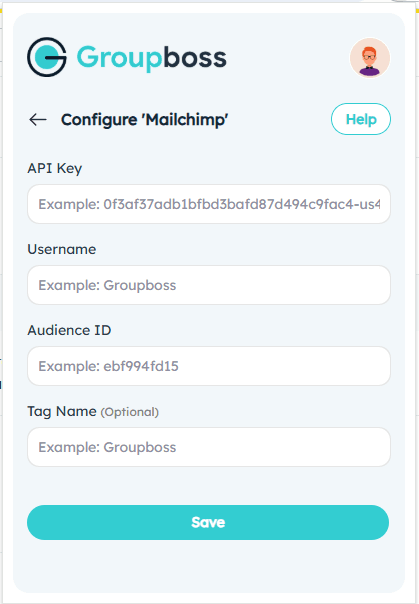
Enter your Mailchimp username, paste your API key, Tag Name and add your Audience ID. Save the settings.
Step 5: Test it
Approve one pending member through Groupboss. Check your Mailchimp Audience a minute later. Their name and email should show up automatically.
That's the whole setup. From here, every member you approve flows into Mailchimp on its own.
Building Your Automated Journey in Mailchimp
Lets create an automated flow:
- Click automation from the left side panel
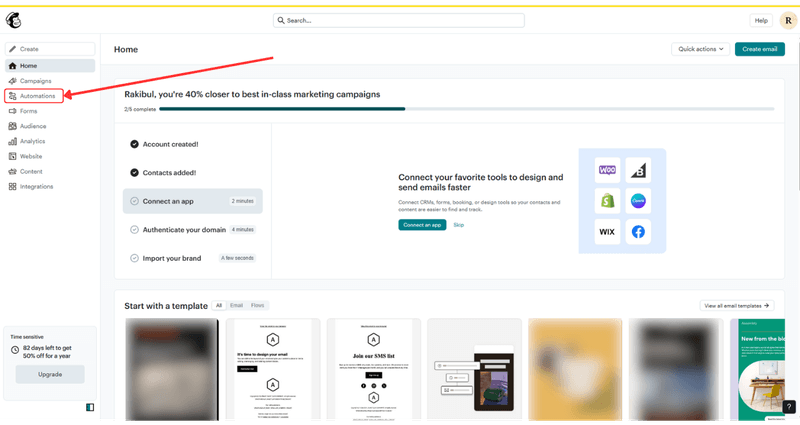
2. Choose any option. You can start with a template, they have dozens of flow templates. Or you can start from scratch.
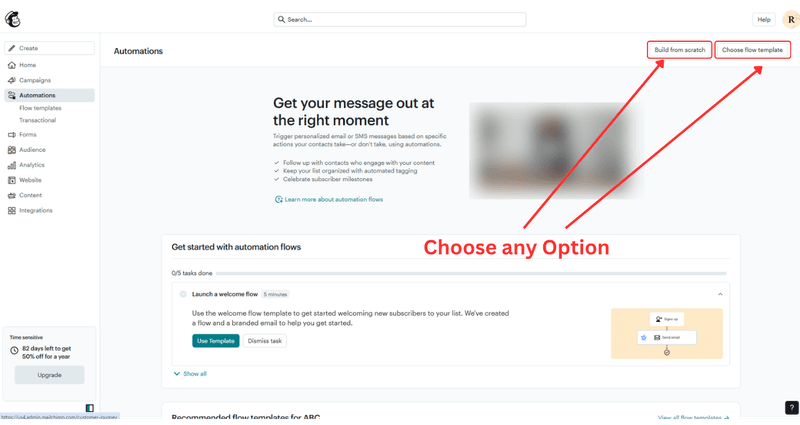
We will show you how to start from scratch.
3. Click on the “Build from Scratch” button. A creating flow will be open.
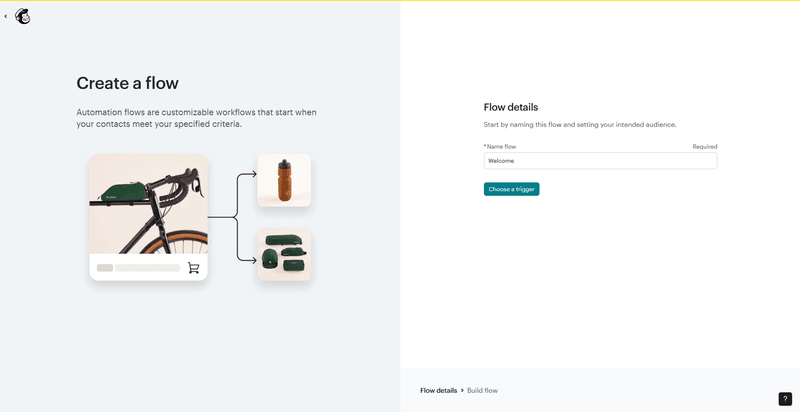
4. Give a name to your automation flow. And click on “choose a trigger.”
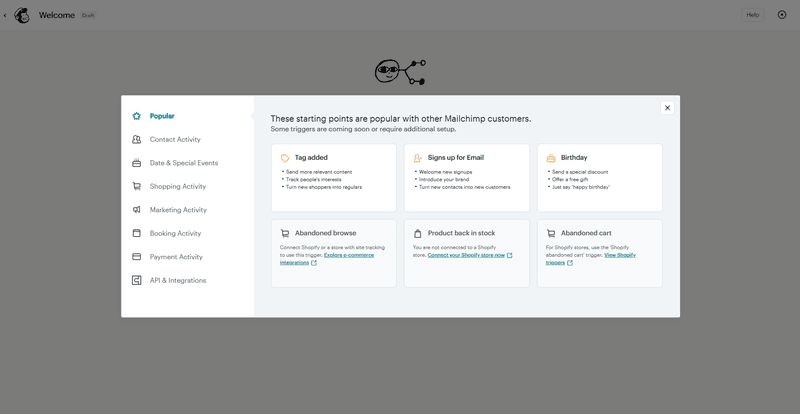
A pop will open. You can find hundreds of triggers there.
5. Choose any trigger from the templates. I am choosing to sign up for an email.
The automation flow will be open. As we have selected the Sign up email trigger, we need to
add rules for who will come under this trigger. We can bring every contact in our audience by not adding any rules or segment our audience by tags, or contact adding dates etc.
6. To filter who can enter this flow, click on the marked button.
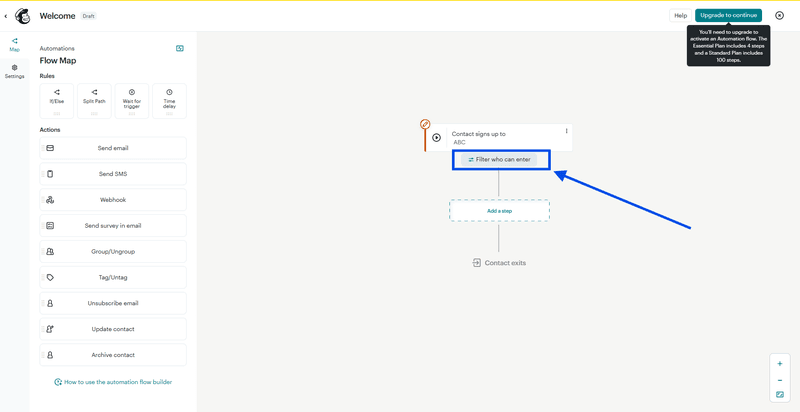
7. We will filter our contact who can enter this flow by adding a tag we used while connecting with Groupboss. To do that, click on the tag term visible on the left side.
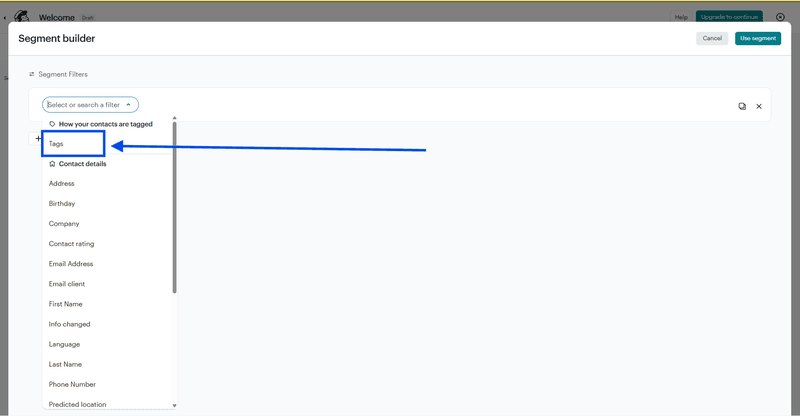
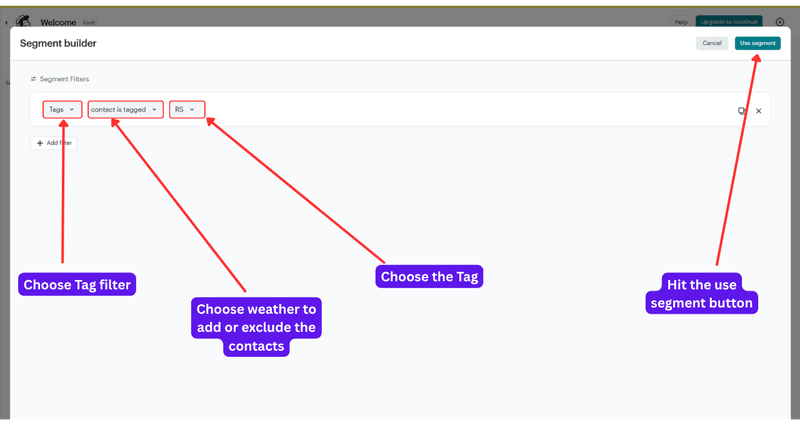
8. Add a tag to filter out your leads for this automation flow. Select option weather to add or exclude the contacts with tag. I am choosing “contact is tagged”.
Then in the next field, choose any tag you want to add from the dropdown list that you have used on Groupboss extension.
Now click on the “Use Segment” button on the top right corner.
9. Add any steps, rules and actions you want. You can add any steps or rules, save it.
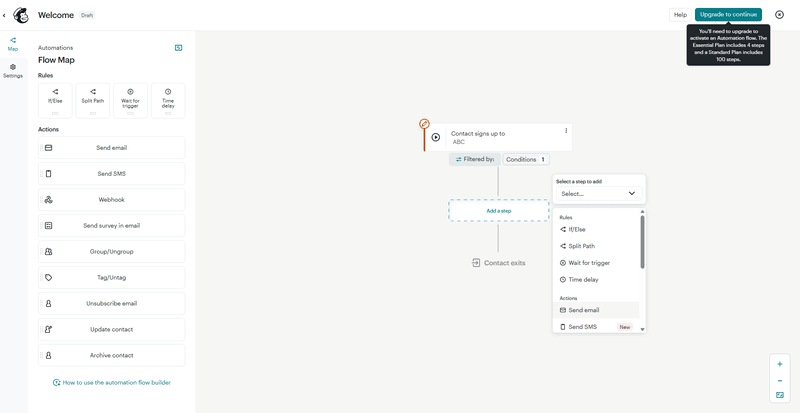
That's how you can create marketing automation with Mailchimp
Mailchimp's benchmarks show segmented campaigns generate around 50% more click-throughs than non-segmented ones. So drop a {{FNAME}} merge tag into every email, a tiny change with an outsized payoff.
Bonus Tips
There are a number of factors that make a trip more about conversion than ignored, or it makes your account's flagged.
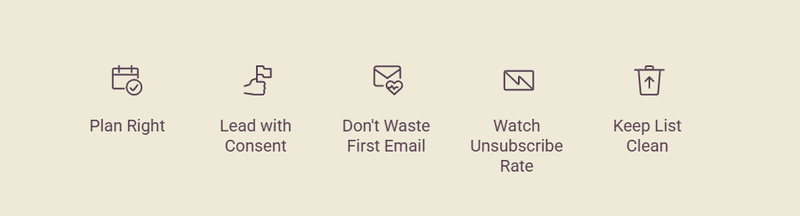
Don't waste the first email.
Welcome emails have a higher open rate than any other type of email sent. Avoid the boring “you are subscribed” message and personalize it.
Watch your unsubscribe rate.
If it's more than 0.5% on your welcome series, your membership question likely isn't establishing clear expectations. Revisit the wording.
Maintain an up-to-date list.
High bounce rates or spam complaint rates are red flags on Mailchimp. Clean up unengaged contacts regularly, particularly bulk imported contacts.
Frequently Asked Questions
Do I need Zapier to connect Groupboss and Mailchimp?
No. The connection is made directly to the Groupboss extension, with your Mailchimp API key and Audience ID.
Can I connect multiple Facebook Groups to Mailchimp?
Yes. Groupboss supports multiple groups, and each group can be linked to a different Mailchimp Audience or tag.
What if a member doesn't share their email?
Groupboss only sends a contact to Mailchimp when an email is present. Members who skip that question simply won't appear in your audience.
Wrapping Up
Any new Facebook Group member will be a potential subscriber. Groupboss automatically gathers their names and e-mail addresses.
Get the membership question correctly, connect the two tools, and everything else follows.
Sign up for your free 7-day trial this week, and connect it to Mailchimp. Your group is already increasing your email list. Now provide it with a place to land.