Groupboss + ActiveCampaign: Automate Facebook Group Leads
Connect Groupboss with ActiveCampaign to capture Facebook Group leads and trigger powerful automated email journeys. A step-by-step setup guide for admins.

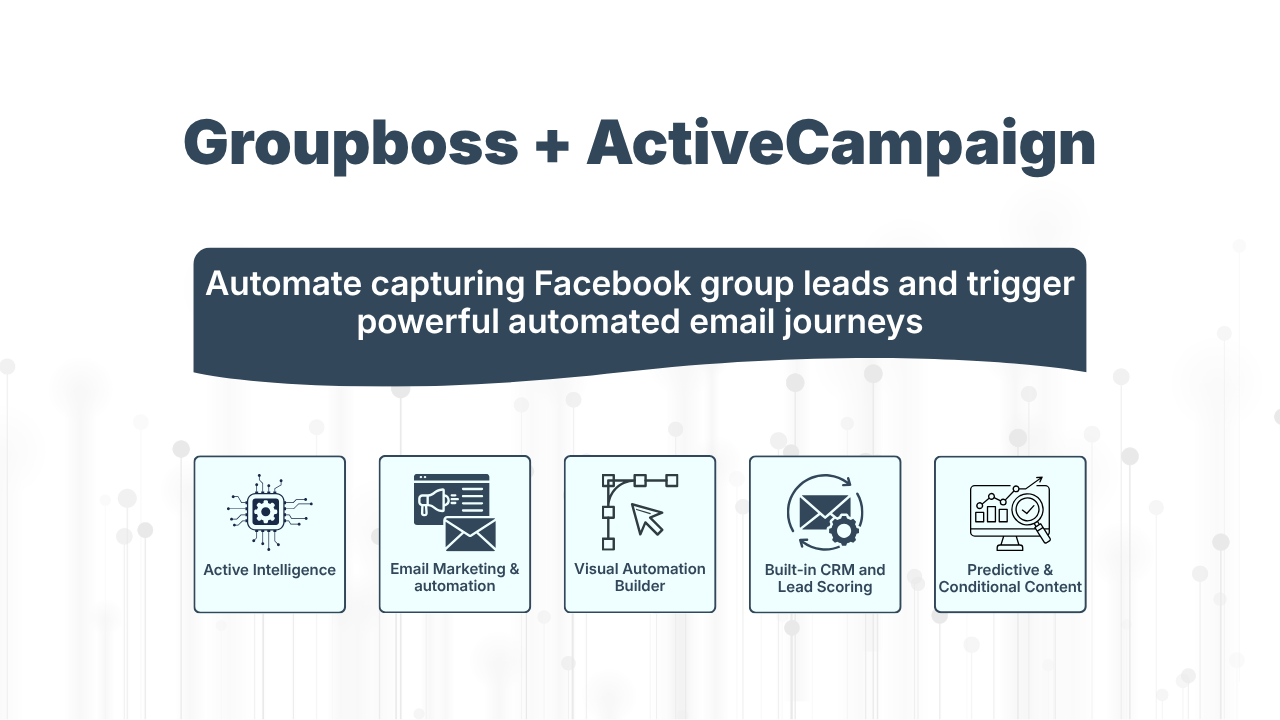
Your Facebook Group generates warm leads daily as people request to join, answer your questions, and share their email addresses. However, most leads remain inactive.
This inactivity represents a missed opportunity. ActiveCampaign, a leading automation tool, can nurture leads, score their interest, and guide them toward a sale automatically. These benefits begin only after the lead is added to ActiveCampaign.
This guide explains how to connect Groupboss with ActiveCampaign, so every new group member is added directly to your CRM. Automation will then handle follow-up tasks. By the end, your Facebook Group will automatically nurture new members, turning inactive signups into engaged prospects.
Let’s get started.
Why Facebook Group Leads Deserve Real Automation
Many group admins treat members as a static list, collecting emails and occasionally sending broadcasts. This approach misses notable potential value.
Facebook Group is the source of unlimited and highly engaged leads. They request to join, answer your questions, and often provide their email addresses at no advertising cost.
Sending an automated email immediately after someone joins keeps your group top of mind. Automated emails have a higher open rate than standard broadcasts, which can turn an ignored lead into a new customer.
The main challenge is transferring these leads into a tool that can engage them effectively. The following two tools provide the solution.
The Two Tools Behind This Workflow
ActiveCampaign
ActiveCampaign is a marketing automation platform with an integrated CRM. Its visual automation builder is widely regarded as the most powerful in its price range.
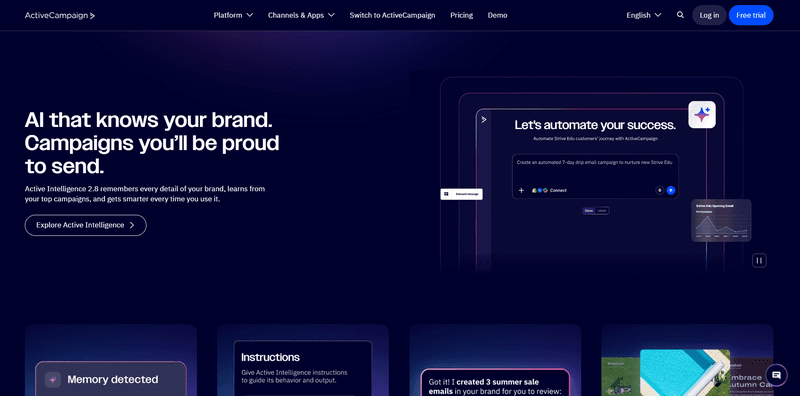
Here are the features that matter most for Facebook Group leads:
Active Intelligence
Active Intelligence is the AI built into the whole ActiveCampaign platform. It’s designed for teams who want to create campaigns, automations, and insights just by describing their goals in simple terms. You tell it what you want, and it drafts campaigns, builds automations, and finds insights for you.
Email Marketing and Automation
ActiveCampaign brings email marketing and automation together in one platform, which is great for teams that want both features in a single tool. You can send broadcasts, set up drip sequences, and trigger emails based on what your contacts do. Each message connects to your automations, so the right person gets the right email automatically.
Visual Automation Builder
Activecampaign has a no-code visual automation builder. You can create drag-and-drop workflows with more than 135 triggers, which is perfect for teams that want detailed nurture sequences without needing to code. Build these sequences with branching paths in just a few minutes.
Built-in CRM and Lead Scoring
ActiveCampaign tracking tool tracks every action your contacts take and gives each one a lead score based on opens, clicks, and page visits. This helps sales teams find the leads most likely to buy. Higher scores mean warmer leads, so you can see who’s ready to take the next step. The built-in CRM keeps deals, contacts, and activities all in one place, so your sales and marketing data are finally together.
Predictive and Conditional Content
One email can automatically show different content to each person, which helps teams send more targeted messages. For example, someone who looks at your pricing page will see one message, while a new subscriber sees something different. On higher-tier plans, predictive sending uses machine learning to send each email at the best time for that person. This way, you reach people with the right message at the right time, without having to guess.
Groupboss
Groupboss is a Chrome extension for Facebook Group admins. When new Facebook group members requests to join, Facebook allows up to three membership questions. Most admins use one to request an email address.
When you click the upgraded "Approve by Groupboss" button, Groupboss chrome extension saves the member's name and email, then sends the data directly to ActiveCampaign through a direct API connection. This removes the need for spreadsheets, manual copying, or third-party tools like Zapier.
By using these tools, your Facebook Group becomes a self-sustaining pipeline for your automation platform.
How to Connect Your Facebook Group to ActiveCampaign
The connection uses a direct API key, so no third-party tools are required. Groupboss provides a comprehensive setup guide: Groupboss + ActiveCampaign Integration Guide.
A summary is provided below.
Step 1: Find your API URL and API Key
You will need two items from your ActiveCampaign account: the API URL and API Key.
Here is how to find them:
- Log in to your ActiveCampaign account. From the top bar, click on the gear icon to go to Settings.
- Next, click Developer in the left sidebar. Your API URL and API Key will be displayed there.
Copy both values and paste them into the appropriate fields in the Groupboss extension.
Step 2: Get your List ID
You will also need your List ID, which identifies the specific ActiveCampaign list for new leads. To find it:
- Click the title of the list you wish to connect with Groupboss.
- The List ID, a numeric value, appears in your browser’s address bar.
Copy this number and paste it into the Groupboss extension.
You may also create a new list specifically for Facebook Group leads if you prefer to keep them separate.
Step 3: Tag name
The tag name is optional and can be found in the left panel. You can add the existing tag or create a new tag.
Copy the tag name and paste it into the extension.
Step 4: Save that integration
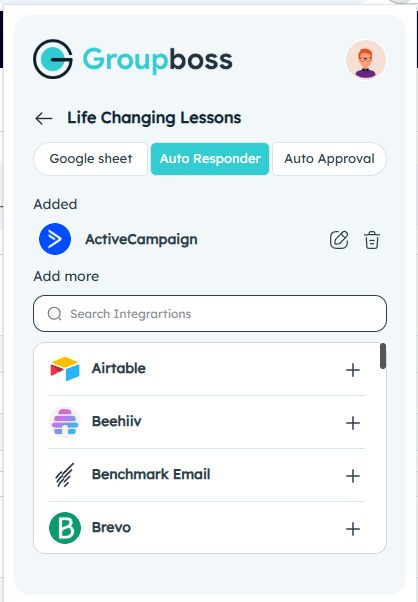
Click Save. ActiveCampaign should now appear under currently activated autoresponders in the Groupboss extension.
Step 5: Approve a Member and Test It
Go to your Facebook group and click Approve by Groupboss on a pending member request.
Next, open your ActiveCampaign account then navigate to Contacts. The member's email should appear within a few seconds.
Setup is complete. Every member you approve will now be added to ActiveCampaign automatically.
Got any issues using Groupboss? Explore how to use Groupboss to get the best result.
Building Your Automation in ActiveCampaign
Next, you will build an automation that welcomes and nurtures each new lead.
Step 1: Start the Flow
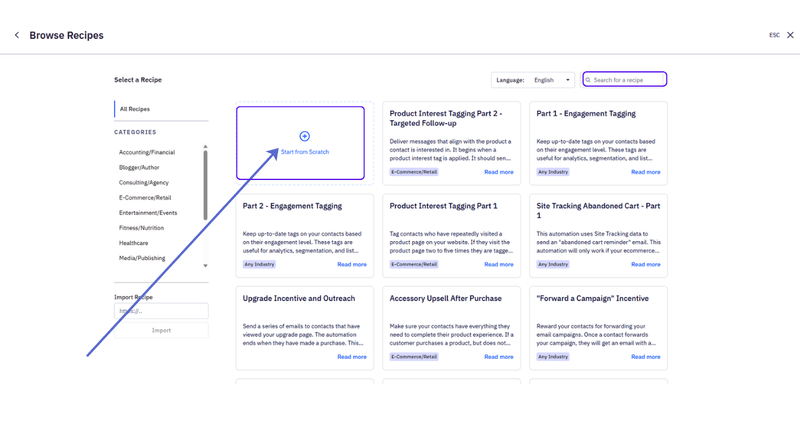
- In ActiveCampaign, go to Automations and click automation. Choose to start from scratch.
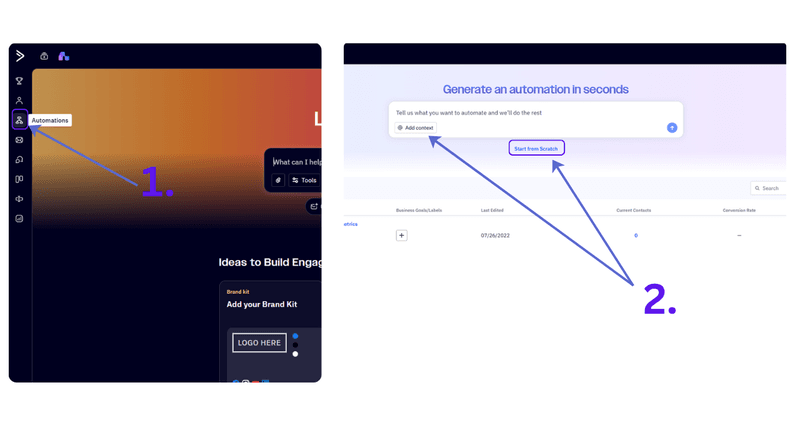
2. Again, from the new screen, choose to start from scratch.
Step 2: Set the Trigger
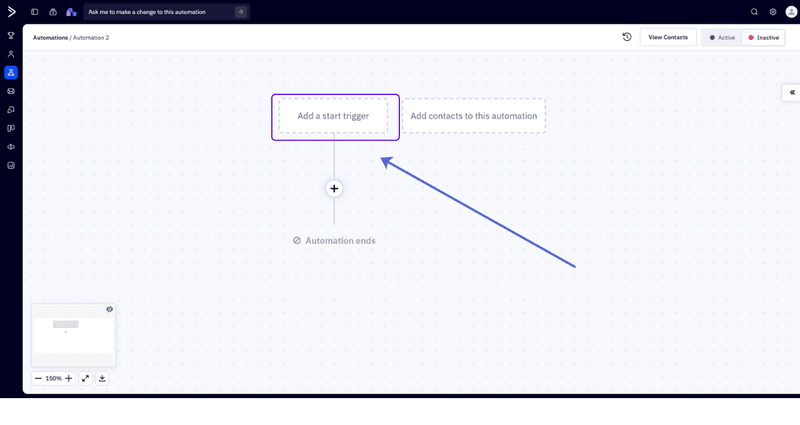
- Click Add a Start Trigger. A modal with several triggers will open.
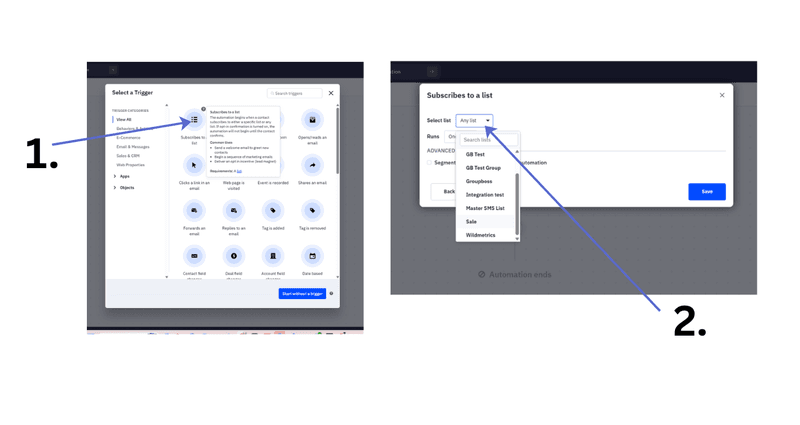
2. Choose "Subscribes to a list," and then pick the list your Groupboss leads land in, and save it.
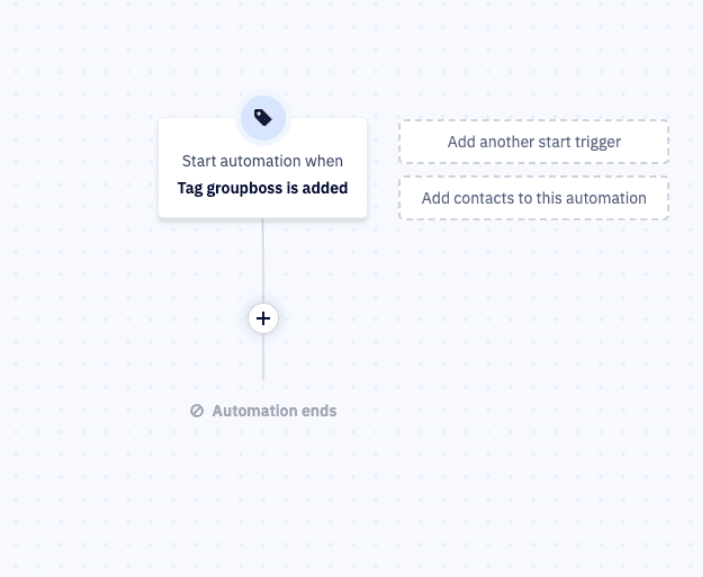
Or, you can choose a “Tag is added” from the list. Whenever a tag will be added, it will trigger the action to start the email to be sent.
Step 3: Tag the contact
Add a step to apply a tag such as "Groupboss." Tags help ActiveCampaign organize and segment your contacts, making it easy to find your group leads for future campaigns.
Step 4: Add Action
You can now add an action to send your email. Click the appropriate icon.
- From the modal, choose the Send an Email action.
- Click on Create a new email
- Select Text Only from the template dropdown, or choose any template that fits your needs.
- Now, click on Blank canvas to start from scratch.
- Enter your subject line and preheader. You can add these later if preferred.
- Click Edit design. The Email Editor will open.
- Compose your email copy and click Next.
- Review your message for any required edits. If everything is correct, click Finish. Test and preview your email before finalizing by selecting Test and Preview.
If you want to send further emails, you can add those in the workflow based on your requirement.
Pro Tips for Getting the Most Out of This Workflow
The automation manages the core tasks. The following tips will help increase your conversion rates.
Send from a real person.
Emails sent from "team@yourbrand.com" may seem impersonal, while those from "maria@yourbrand.com" feel more personal. Set a real sender name in ActiveCampaign.
Ask for consent in your membership question.
Phrase your membership question so members understand they are signing up for emails. For example: "Enter your email to get [resource] plus occasional updates." Clear expectations reduce future unsubscribes.
Avoid making a sales pitch in your initial email. Members have trusted you with their email addresses, so provide value first and reserve offers for later emails.
Clean your list regularly.
ActiveCampaign charges only for active contacts. Removing inactive emails saves money, protects your sender reputation, and provides reliable automation statistics.
Frequently Asked Questions
Do I need Zapier to connect the two?
No. The connection is native. You only need your Groupboss subscription and API URL, API Key, and List ID from ActiveCampaign.
Can I connect multiple Facebook Groups?
Yes. Groupboss supports multiple groups under one account. Connect each group to a different ActiveCampaign list and create separate automations.
What if a member doesn't share their email?
Groupboss only sends a contact when an email is present. Members who skip the question will not appear in ActiveCampaign.
Start Growing Your ActiveCampaign List from Your Facebook Group
Your Facebook group is already attracting new members, each acting as a warm lead. Groupboss captures their name and email as soon as you approve them. ActiveCampaign then automates welcoming, nurturing, and scoring these leads.
Once set up, the system runs automatically. Your Facebook Group becomes more than a community and functions as a valuable engine for your business. You just need to learn the best way for Facebook Group management. Don't worry, Grouposs has plenty of resources to help you with.
Start your free 7-day trial of Groupboss and connect it to ActiveCampaign this week. Your next customer may already be in your group.