How to Pin a Post in Facebook Group: A Complete Guideline


You wrote the one post your group actually needs to see. The rules, the welcome note, the link to Saturday's event. Two days later it is buried under sixty newer posts.
Pinning a post fixes that. When you pin a post in a Facebook group, it jumps to a Featured strip at the very top. That strip sits above the normal feed, where members land first.
Facebook used to call this the pinned or announcements section. It is just Featured now, and you can keep more than one item up there at once. This guide covers how to pin, reorder, and unpin, on both desktop and the app.
To pin a post in a Facebook group, open the post, click the three dots in its top corner, and choose Pin to Featured. Only admins and moderators can do this. The post then sits in the Featured section at the top of the group until you take it down.
What pinning to Featured means now
Facebook renamed the old pinned posts and announcements. The same job now happens in the Featured section. According to Meta's help article on pinning items to a group, admins and moderators can pin posts, rules, and features to the top. The newest pinned item appears first, and pinned items stay up until you remove them.
Visibility depends on your group type. In a public group, anyone on or off Facebook can see the featured items. In a private group, only members can.
Regular members cannot pin a group post at all. They can write something worth featuring and ask an admin to do it.
One honest limit before you start. Pinning does not notify anyone, and it does not boost how far the post travels. It only changes position. The post sits higher, and that is the whole benefit
How to pin a post in a Facebook group on desktop
Here are the steps from a computer.
- Open your group at facebook.com/groups, then find the post you want at the top, or write a new one and publish it first.
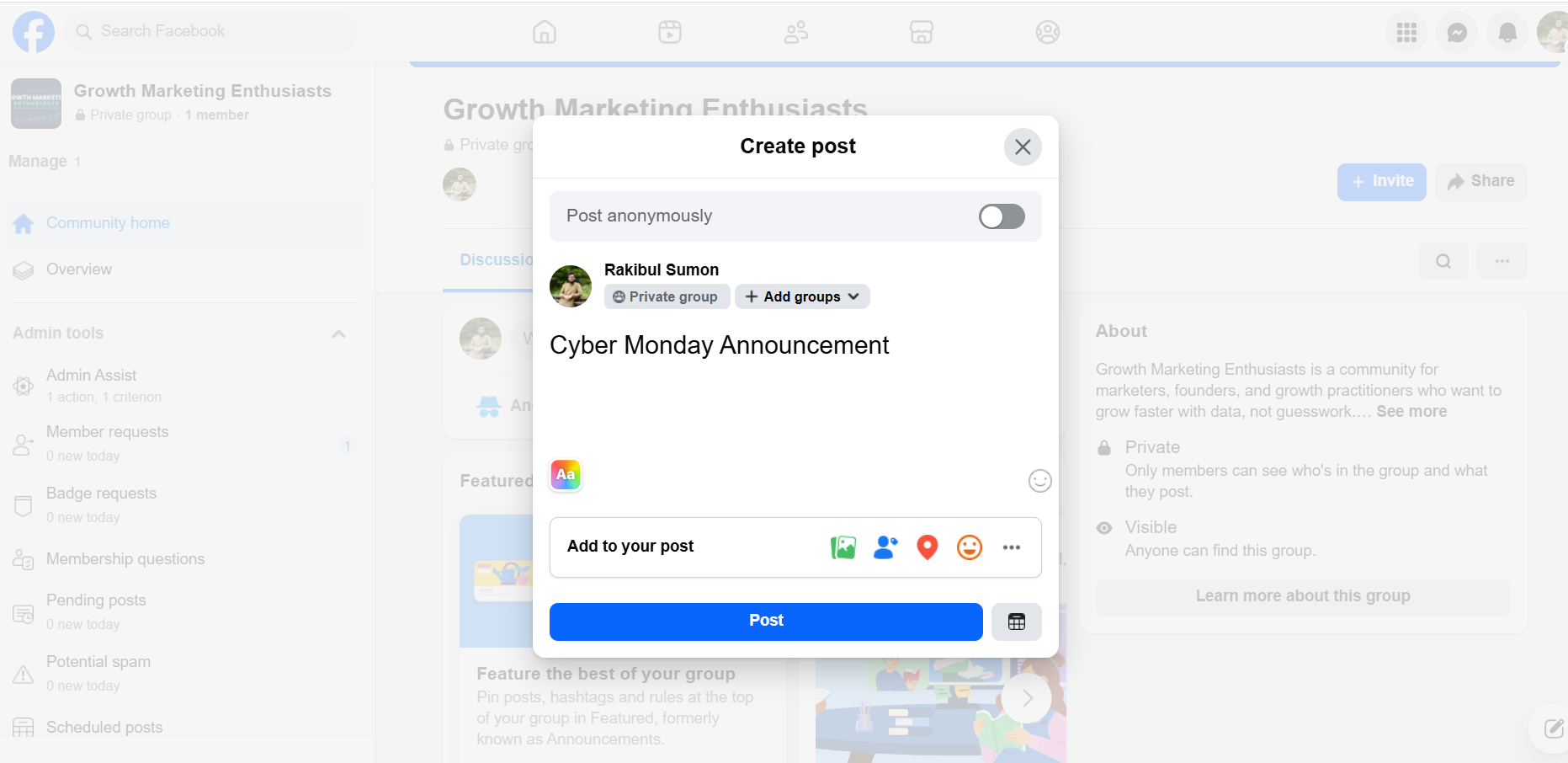
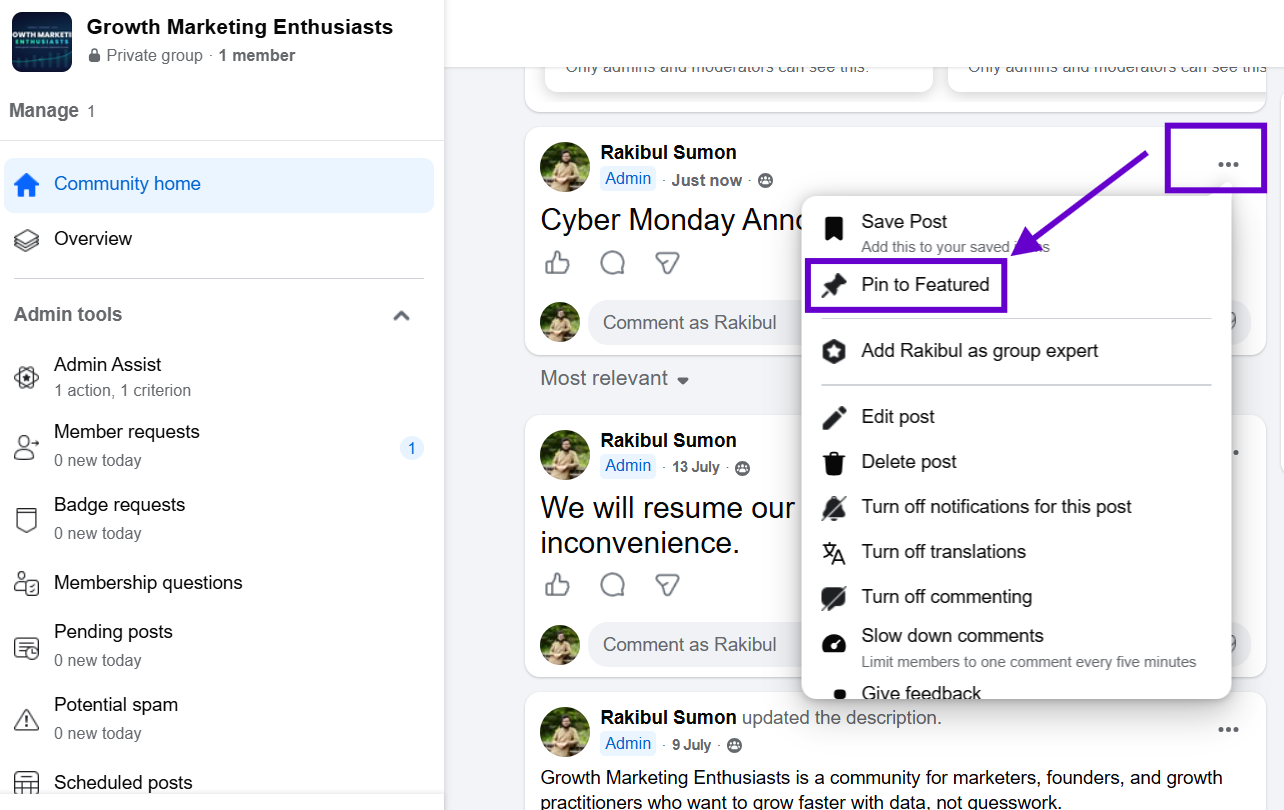
- Click the three dots in the post's top right corner. Some layouts label this More or Options. Once you have posted something, choose Pin to Featured.
- The post moves to the Featured section at the top of the group. You are done.
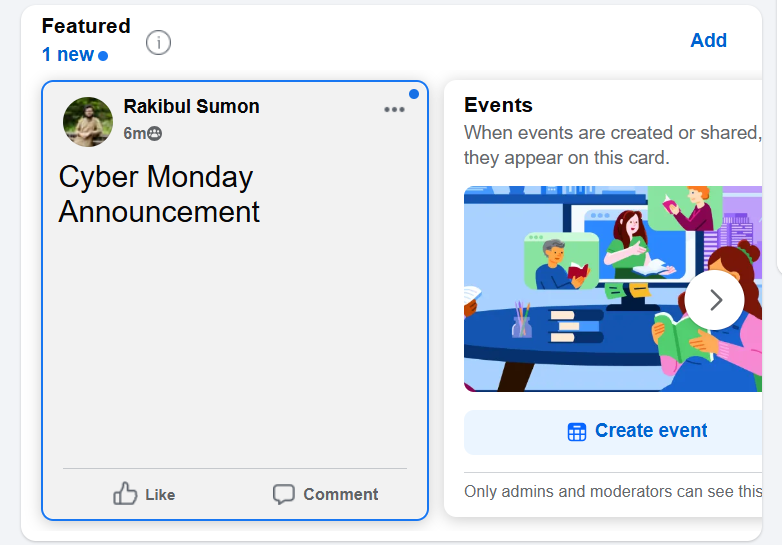
There is a second way in, straight from the Featured area.
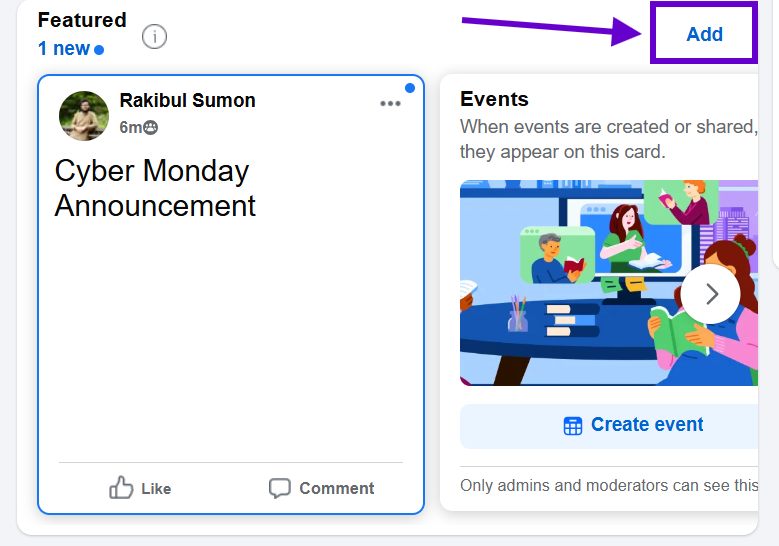
- Click the Add or Add more icon inside the Featured section.
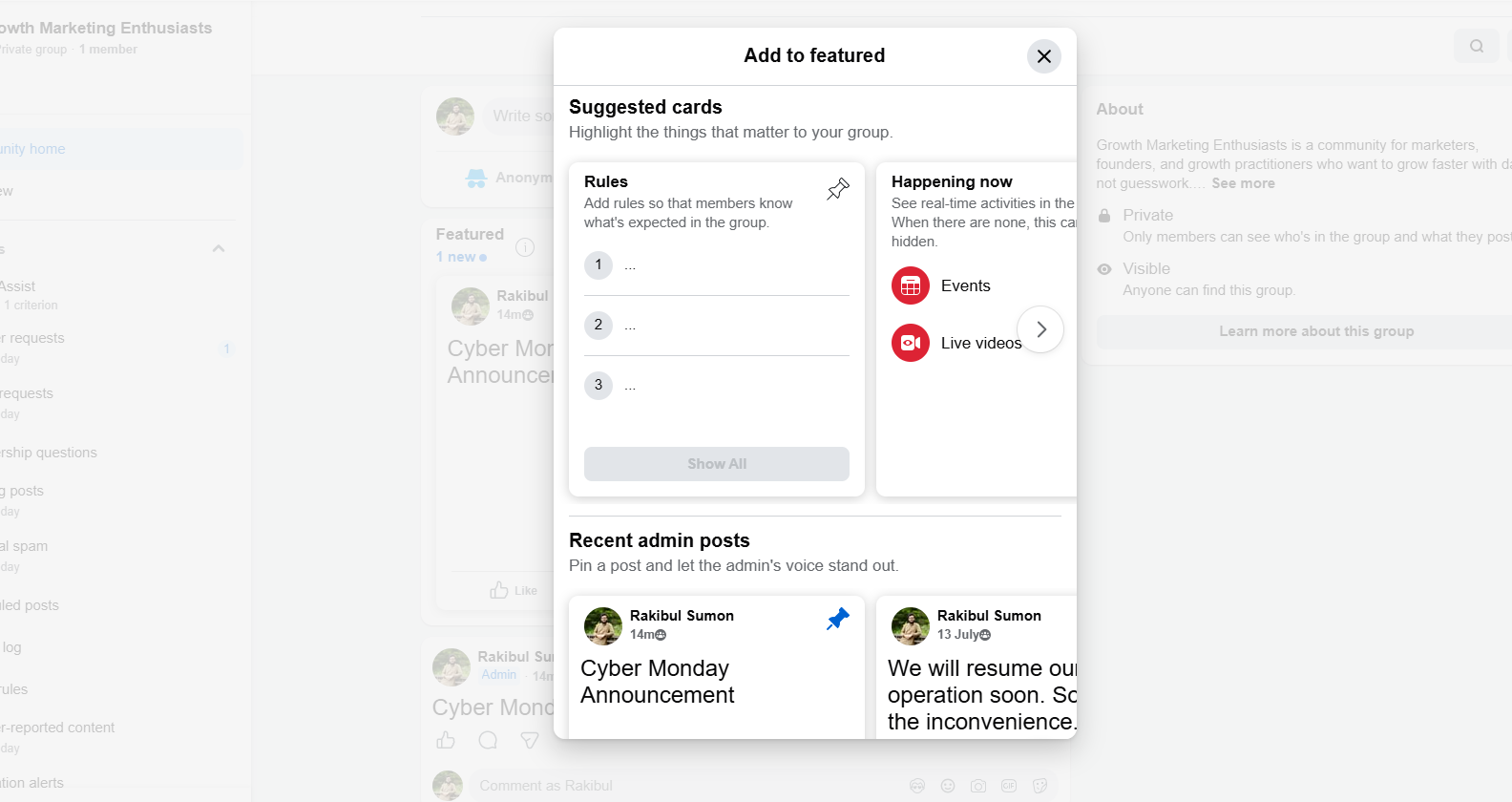
- Facebook shows Suggested cards and your recent admin posts. Click the pin icon on the card you want.
Both routes land in the same place. Use whichever is closer to where you already are.
How to pin a post from the Mobile Facebook app
Plenty of admins run their group entirely from their phone, so here is the mobile version. It tracks the desktop steps closely.
- Open the group in the Mobile Facebook app and tap the post you want, or create and publish it first.
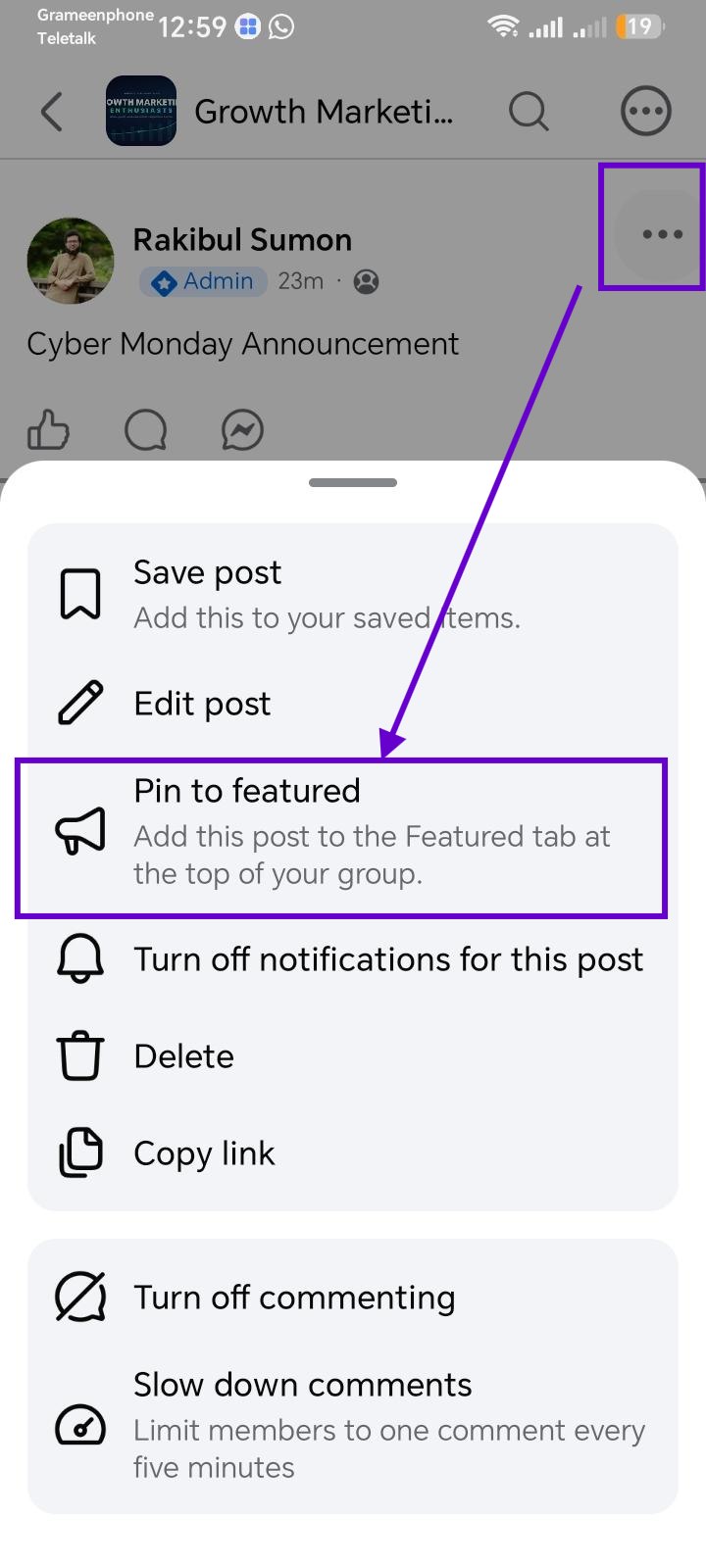
- Tap the three dots at the top of the post. Tap on the “Pin to Featured”
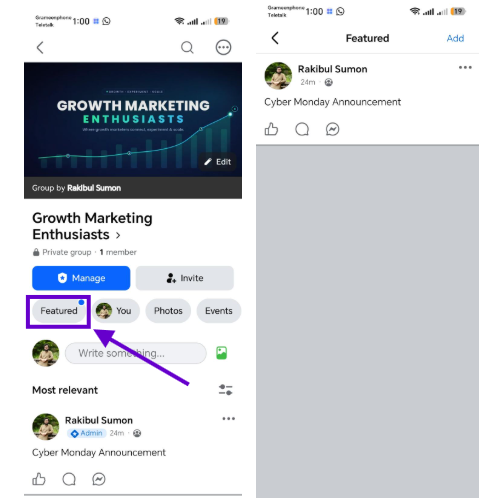
3. The post appears in the Featured section at the top of the group. To see it, tap “Pin to Featured.”
Mobile app menus shift between versions and phones. If the wording looks different, look for Pin, Feature, or Pin to Featured in the same three-dot menu. It does the same thing under each label.
How to reorder or move a featured post
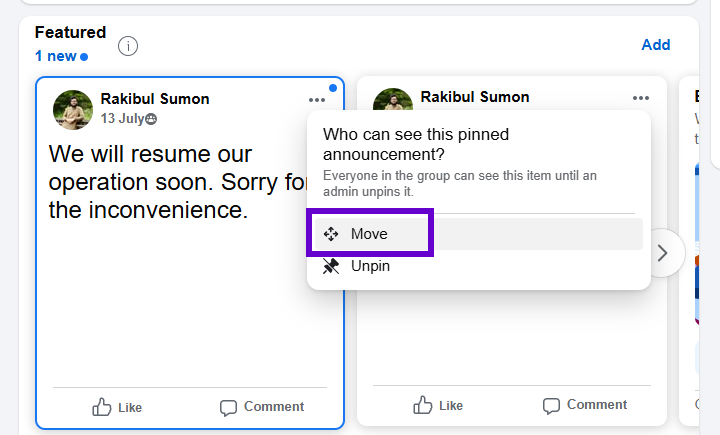
Once you have a few items featured, the order matters, because the newest one sits first by default. To change that, click or tap the three dots on the featured card and pick one of two options.
- Move lets you drag the item to any spot in the Featured strip.
- Moving to the front sends it straight to first place, ahead of everything else.
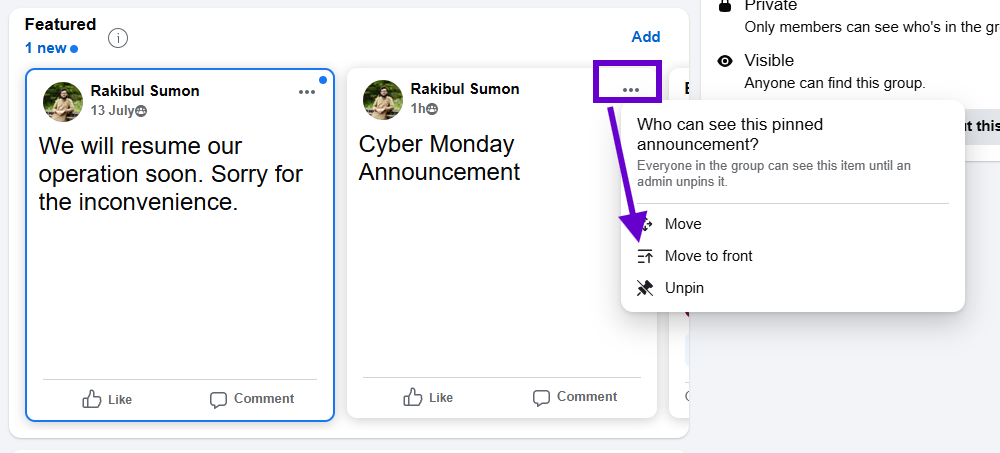
Use Move to front when an older post suddenly matters again, like a rule you want everyone to reread before a busy weekend.
How to unpin a post from the Featured section
When a featured post has done its job, take it down so the strip stays short.
- Go to the Featured section, or find the featured card in the feed.
- Click or tap the three dots on that card.
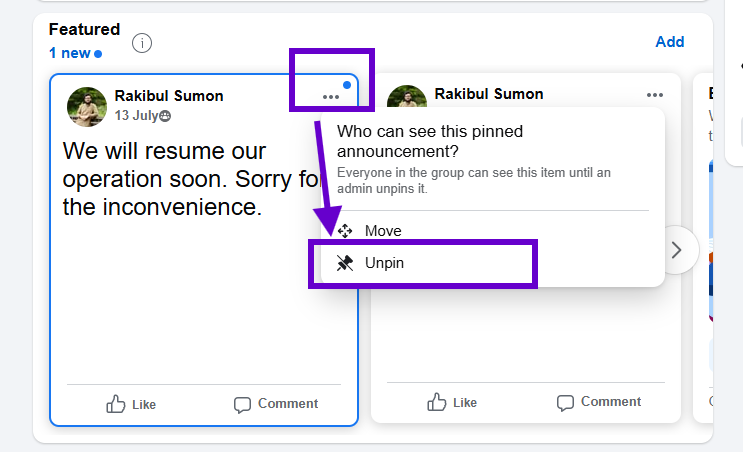
- Choose “Unpin” from Featured. Some layouts say Unpin.
The post drops back to its normal place in the group. It is not deleted, and none of the comments or reactions are lost. Only admins and moderators can unpin, the same as pinning.
What to pin, and why it earns the spot
The Featured strip is small on purpose. A few items get read. Fifteen get ignored. So treat each slot as something you have to earn.
Rules are the obvious first pin. New members skim the top before they read anything else, so that is the place to put your clear Facebook group rules.
A pinned Facebook group welcome post is the second. It gives first-timers somewhere to land, tells them what the group is for, and points them to whatever you want them to do first.
Decide who owns the strip, too. Only an admin or moderator can feature a post. On a bigger team, agree who keeps the top of the group tidy.
That welcome moment is also where growth quietly happens. If your group asks membership questions, this is where a new member hands you an email address on purpose. Groupboss saves each person's name, email, and answers to a Google Sheet as you approve them, so the address is recorded before Facebook clears it. That is a calm way to collect leads from your group the right way while your pinned welcome post does the greeting.
Frequently asked questions
How many posts can you feature in a Facebook group?
You can feature several items at once, and reorder them freely. Meta's Help Center does not publish a fixed maximum, so the real limit is attention, not a number. A Featured strip with a dozen cards gets scrolled past. Keep it to the handful members genuinely need.
Can a moderator pin a post in a Facebook group?
Yes. Both admins and moderators can pin posts and unpin them. The permission is the same for both roles. Regular members cannot.
Can regular members pin their own posts?
No. Only admins and moderators can pin. A member's best move is to write something useful and ask an admin to feature it.
Will pinned posts notify group members?
No. Pinning does not send a notification and does not boost reach. It raises visibility only by placing the post at the top, which is exactly what the Featured section is for.
Can you pin posts in a private Facebook group?
Yes. Admins and moderators can pin in both public and private groups. The difference is who sees it. In a private group, only members can view the featured items. In a public group, anyone can.
Keep your Featured section working for you
Three things carry most of this. Only admins and moderators can pin or unpin. The Featured section holds several items and you control their order. And a short strip beats a long one, every time, because members only read the top of the top.
Facebook keeps moving these menus, so if a label looks different from the screenshots, do not worry. Find the three-dot menu on the post and look for Pin, Feature, or Pin to Featured. The path changes more often than the feature does.
This week, pin just two things: your rules and a short welcome post. Remove anything featured that no longer applies. Then open the group on your phone and check the strip there, because that is where most of your members will actually see it.
Written By
Bayazid Hossain
He loves to write and explore content on various segments. Traveling is his favorite hobby.