Facebook Group Settings: Everything You Need to Know in 2026
Facebook group settings is the most important thing to look after for a Group. Making all the settings of the Facebook group is needed to get maximum benefit of the group.


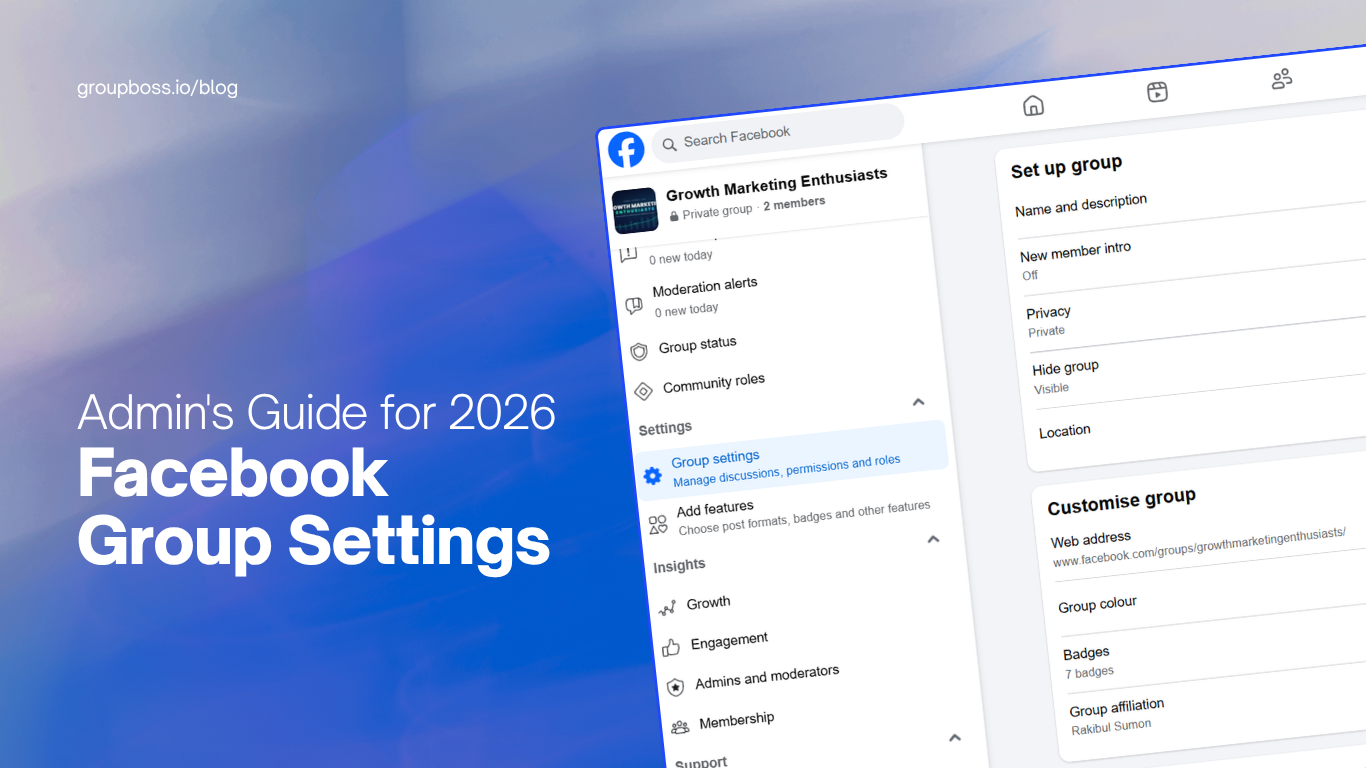
Your Facebook group’s settings help everything run smoothly. They control who can join, who can post, what stays private, and what shows up in search. If you set them up well, your group will mostly manage itself. If not, you may end up fixing problems every day.
The challenge is that Facebook often moves or renames these controls. A menu that was on the left last year might now have a different name or spot. This guide explains each Facebook group settings section by its purpose, not just where it was in 2024. This way, you can still find what you need even if Facebook changes things again.
To open your Facebook group settings, go into your group as an admin, click Manage or Admin tools, and choose Group settings. Facebook sorts the controls into sections for setup, membership, discussion, and features. Only admins can change these settings.
Where to find your Facebook group settings
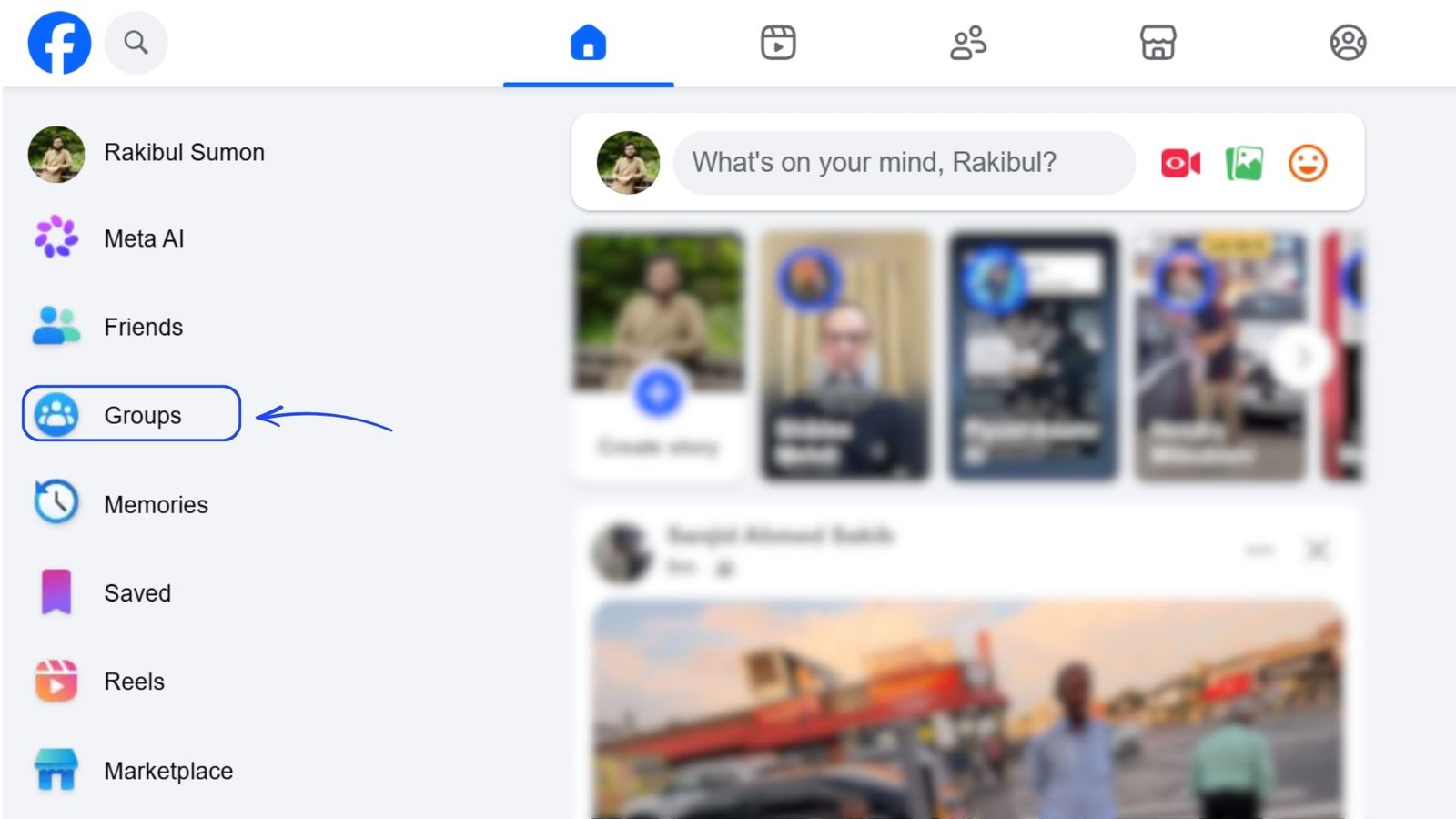
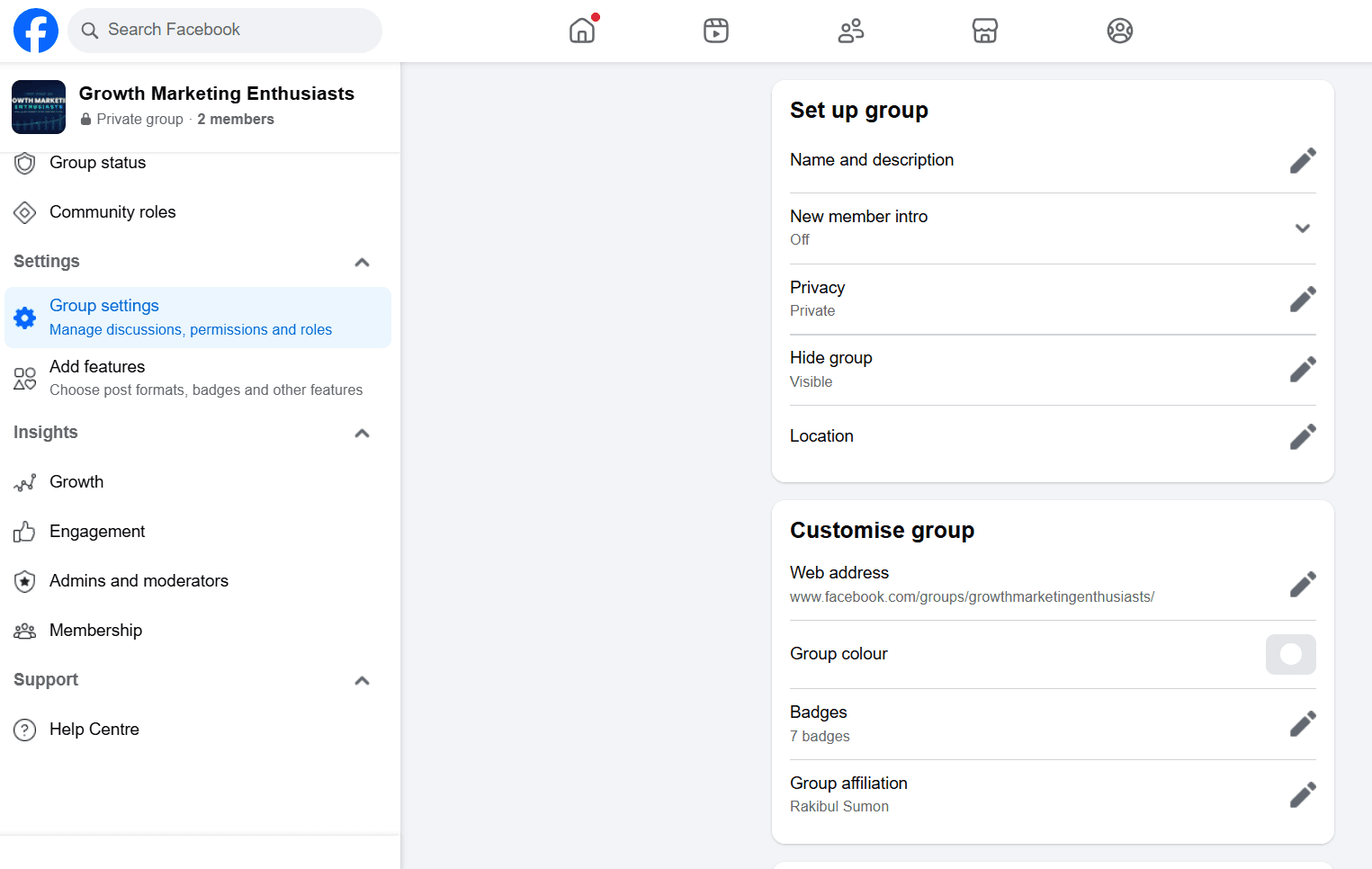
1. If you are using a computer, go to Facebook groups from the left sidebar.
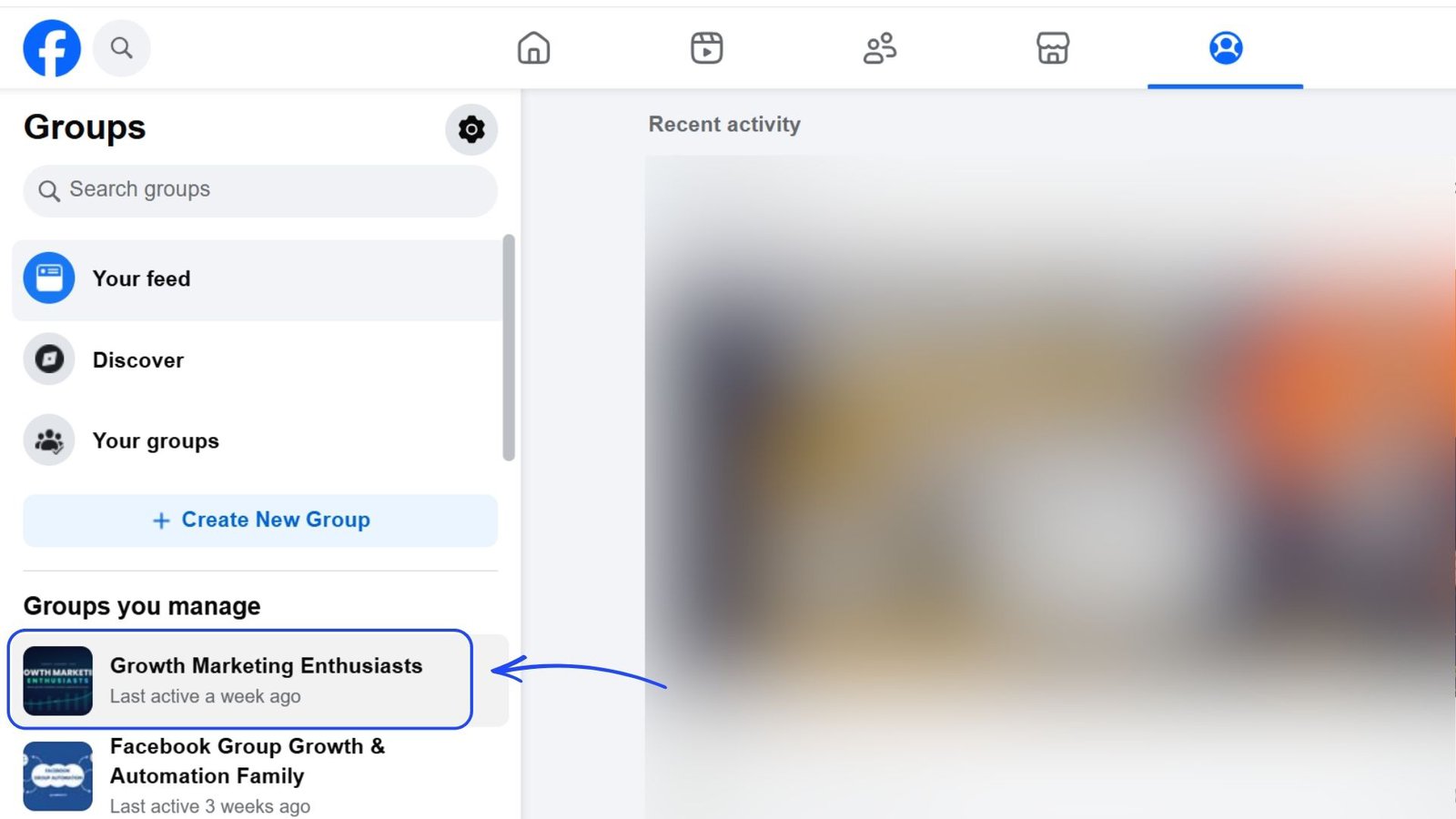
2. From the group list click and open your group for which you want to update or oversee group settings.
3. In the left sidebar, scroll down and look for Setting. Once there, select Group settings.
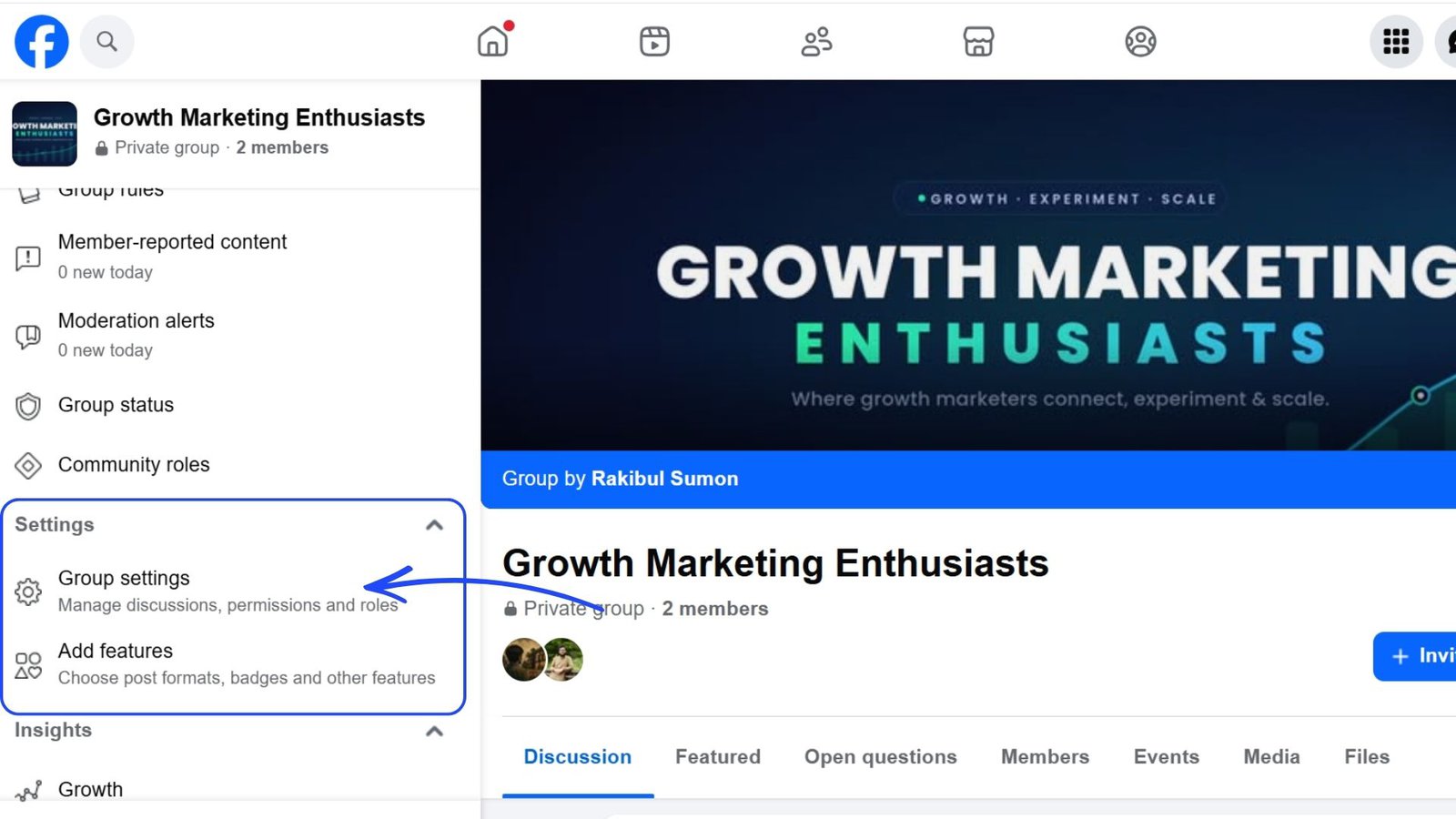
From this section you can access all the group settings such as set up group, customize group, manage membership, discussions etc.
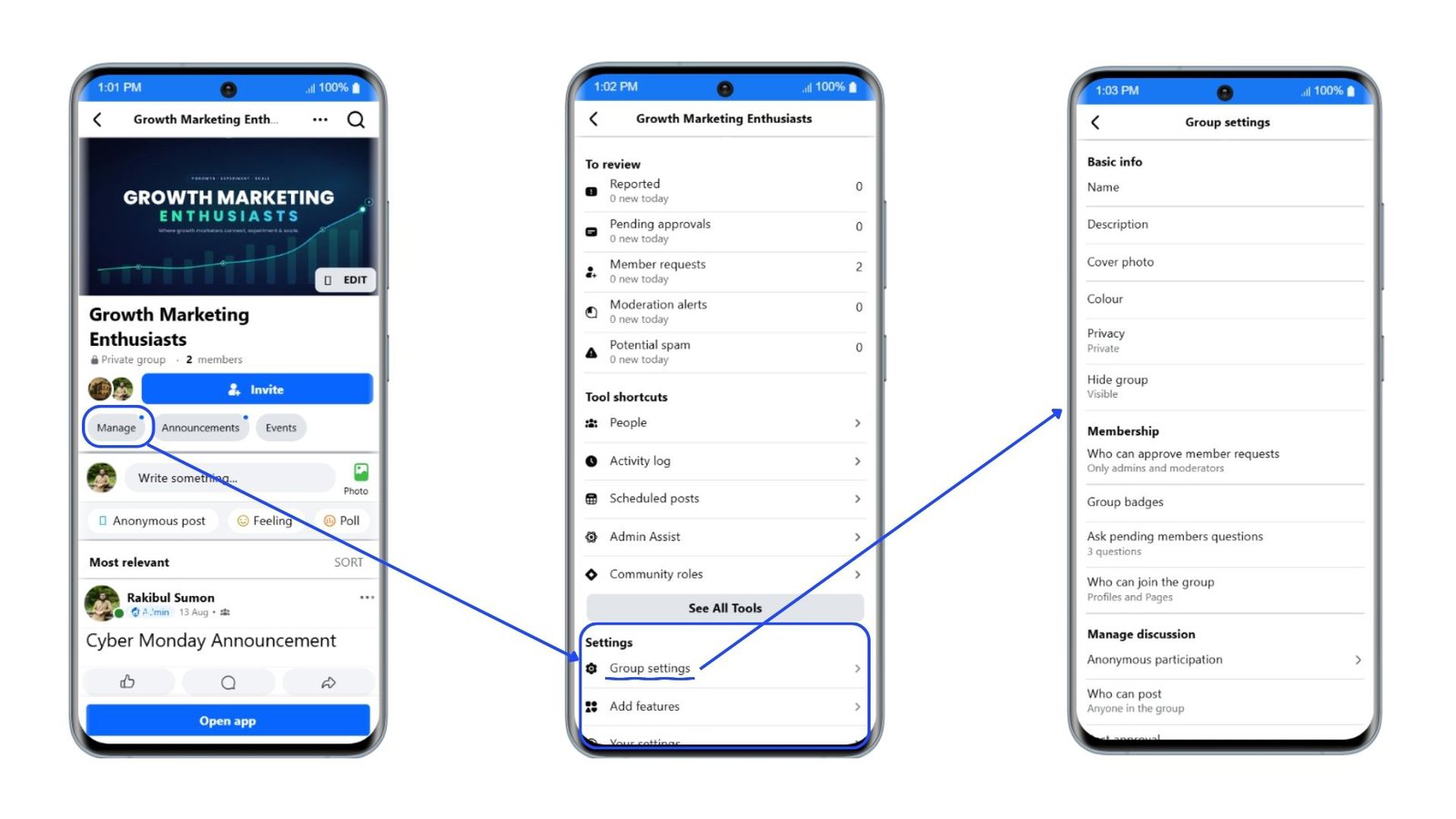
If you are on your phone, open your group, tap the Manage or gear icon at the top, then tap Group settings.
There were another place to check is now retired. Now you can see from the three dots menu quick actions like manage your content, notifications, unfollow, or pausing the group. These options are not in the main settings menu, so they are easy to miss.
Set up group
The first group of settings covers the basics that people see before joining your group.
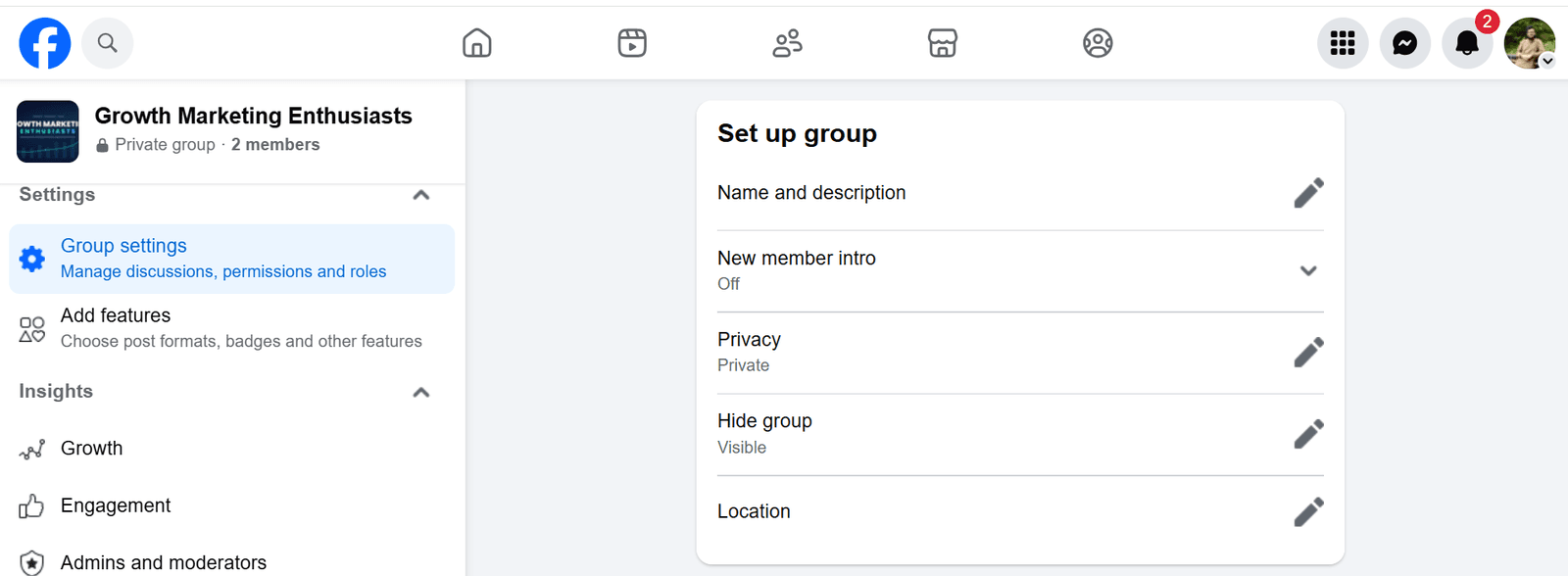
Name and description
Your group name is the first thing people see, so keep it simple and clear about who the group is for. The description fills in the details. If you need help writing it, check out Facebook Group Description: All You Need To Know in 2026.
New Member Intro
Create a message that new members will see when they visit your group for the first time.
Privacy
A group is Public or Private. In a public group, anyone can see the posts and members. In a private group, only members can see the posts and members.
One rule surprises many people: you cannot change a private group back to public. This change is permanent, so decide before you make it. For more details, see Public vs. Private Facebook Group: All You Should Know.
Visibility
This is different from privacy. A private group can be set to Visible, so it appears in search, or Hidden, so only members and invited people can find it. Public groups are always visible.
Location
Add a location if your group is tied to a specific place, like a city or country, so local members can find it. This is optional, but make your group easier to find.
Customize group
These settings control how your group looks and how it appears to others.
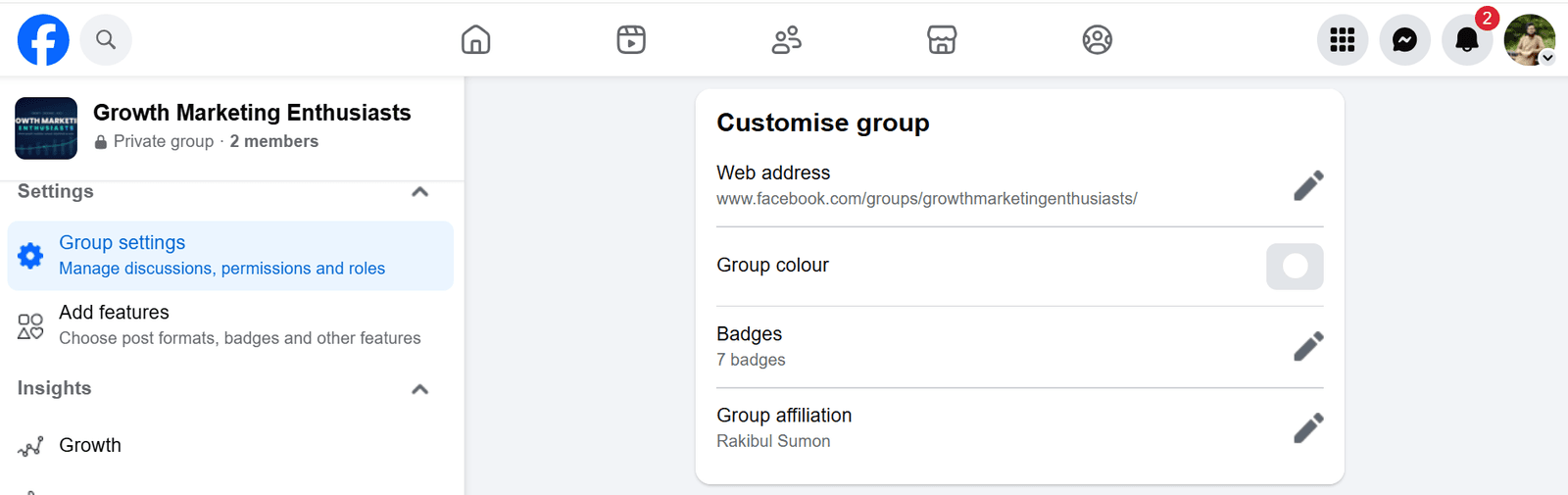
Web address
You can change the default numbered URL to a custom one that is easier to share and looks more professional.
One limit to know before you set it. According to Facebook’s help note on custom web addresses, once your group has more than 5,000 members, you cannot change the custom web address. So choose it carefully while your group is still small.
Colors
The group color sets the accent shade members see, so try to match it to your logo. Badges
Facebook group badges are small labels next to a member’s name, like new member, admin, or top contributor. They help everyone see the group’s mood at a glance and welcome newcomers. You can turn each badge on or off.
Group Affiliation
Affiliation shows who runs the group or which organization it belongs to, which can help new members feel more comfortable joining.
Manage membership
This section controls who can join your group and who can approve new members. These are some of your most important controls.
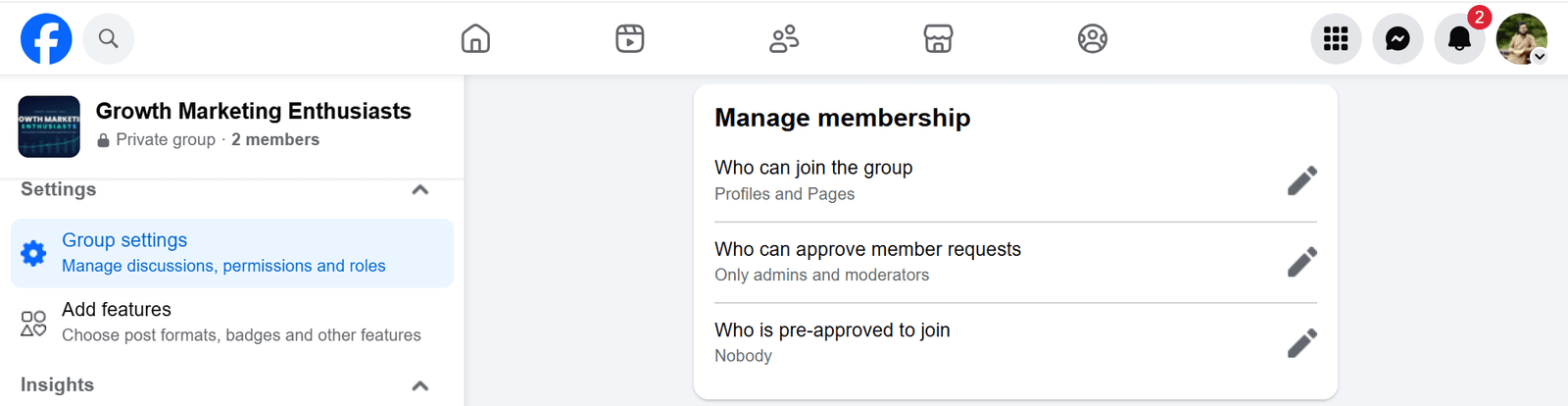
Who can join
You can let both profiles and Pages join, or just profiles. If you allow Pages, the people who manage those Pages can see and join your group. For most groups, allowing only profiles is safer.
Who can approve member requests
By default, admins and moderators can approve new members. You can change this setting to let more or fewer people approve requests.
Pair it with membership questions. Facebook lets you ask up to three questions when someone asks to join, according to Meta’s Help Center. These answers help you screen out spam before it gets in.
Those same answers are also where many admins quietly build their email list. A membership question can ask for an email.
Groupboss can collect the answers people give when they join, saving each member's name, email, and replies to a Google Sheet as you approve them, before Facebook clears the request and drops the answers.
Who is pre-approved to join
You can pre-approve people so their request is accepted automatically. According to Meta's Help Center, you either pick another group you admin or upload a file.The file rules are strict, so the old advice to just upload your emails no longer works. The file must be a .csv or .tsv under 5 MB, with no more than 5,000 addresses. Each address must belong to a Facebook account.
You can upload only one file at a time, and file-based pre-approval expires after 90 days. Pre-approval does not send an invitation or confirm that anyone has joined.
Manage discussion
These settings control what happens inside your group after people join.
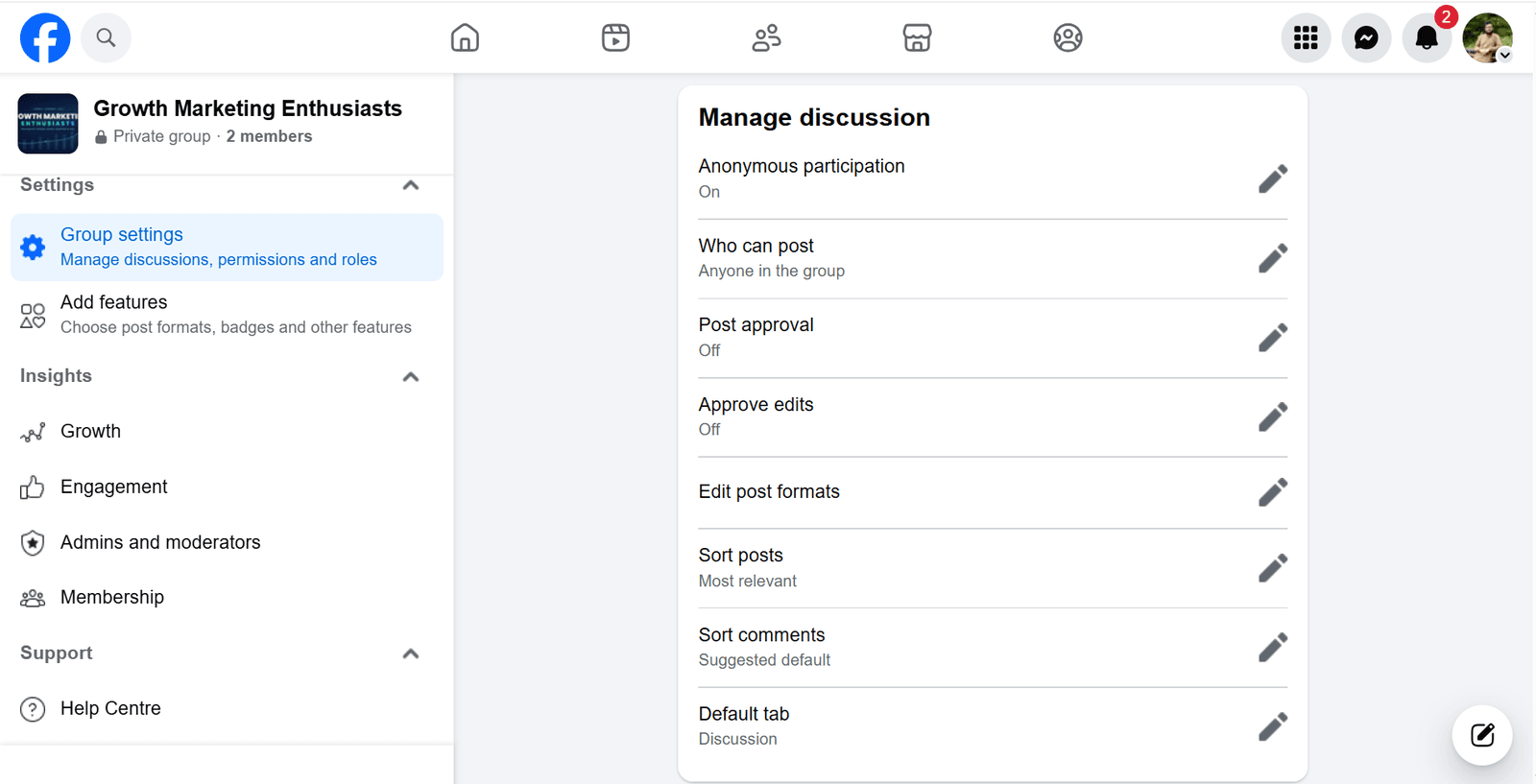
Anonymous Participation
Anonymous participation allows members to post, comment and react in the group without sharing their name and profile photo. This info is still visible to admins, moderators and Facebook's systems.
Who can post and post approval
You can choose if anyone can post or if only admins can. If you turn on post approval, every member post must be checked by an admin or moderator before it appears. This is your best way to stop spam and off-topic posts.
Post format
Create shortcuts so that the post formats that people use most often in the group are easy to find. You can also set default post formats for your group.
Sorting post and comments
Choose the order of posts and comments appear in by relevance, recency of activity, and for comments, by most engaged comments, recency and suggestions. These settings may seem minor, but together they help keep your group tidy every day.
Default tab
This is the tab where your group members will be landed after taking entrance to your group. By default, the discussion tab is selected for this purpose.
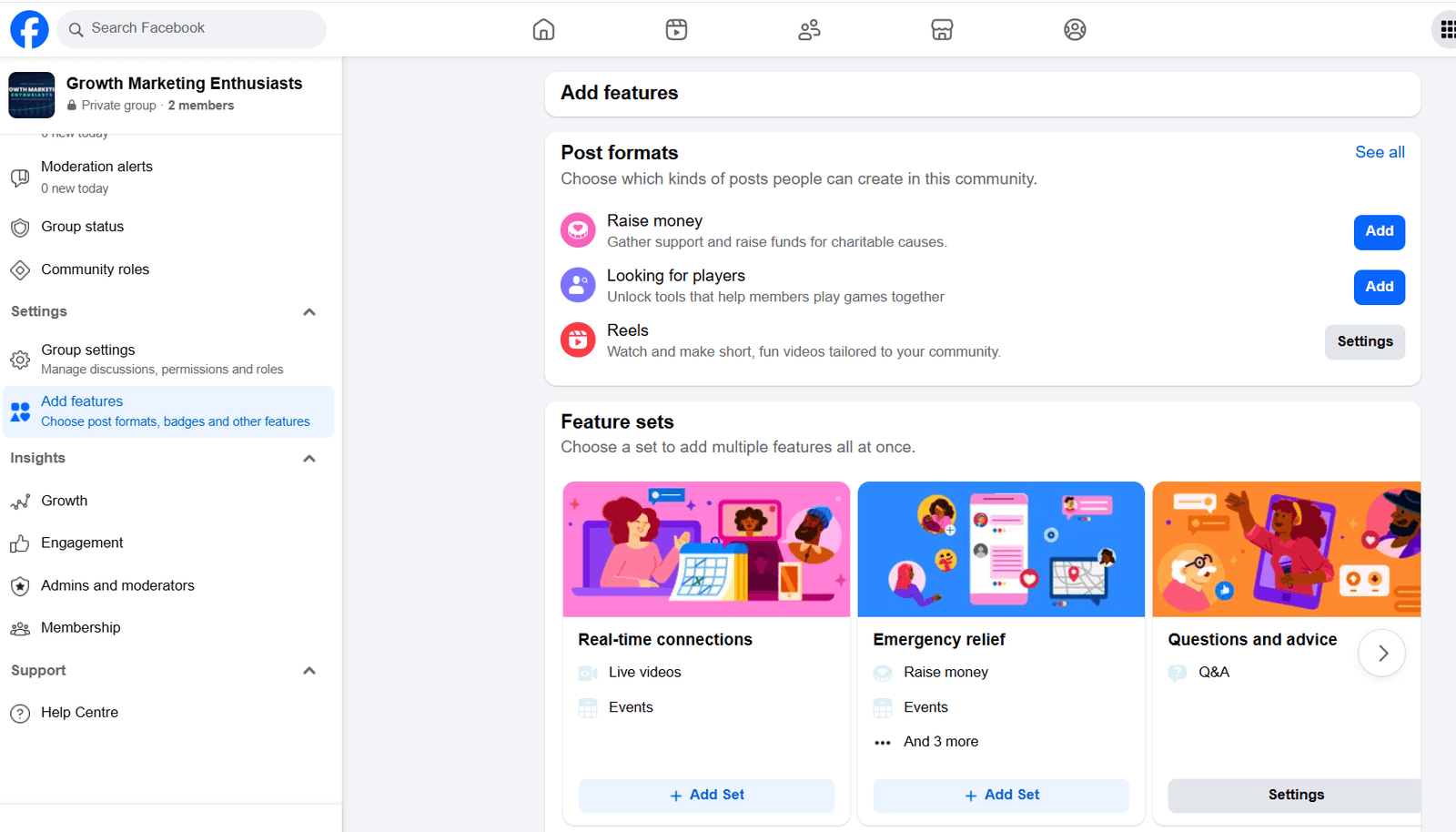
Add features and advanced settings
The Add features area lets you turn group features add or remove. You can add features one by one or use a feature set, which is a preset bundle Facebook offers for certain types of groups, like gaming or buy-and-sell communities. You can also find post formats, badges, and selling tools here.
Meta has retired Rooms. Meta says that Messenger Rooms is no longer available. Group video now happens through group chats and calls instead, so do not look for a Rooms toggle that is gone.
The advanced settings connect your group to the rest of your online presence. Linking your Facebook page to the group lets you post as the Page and show your business to members. Recommended groups let you point members to your other communities. The Apps section shows which third-party apps can access group content, so it is worth checking for privacy.
Frequently asked questions
Where do I find group settings on my phone?
Open the group in the Facebook app, tap the Manage or gear icon at the top, then tap Group settings. Membership questions, pending requests, and Admin Assist are in the same admin area. Labels can change between app versions, so look for Manage first.
Can I change a private group back to public?
No. You can turn a public group private, but you cannot turn a private group back to public. Facebook treats this as a one-way change to protect what members posted while the group was closed, so decide before you switch.
Can I pre-approve members by email?
Yes, with limits. Upload a .csv or .tsv under 5 MB with up to 5,000 addresses, all belonging to Facebook accounts. Only one file at a time, and pre-approval expires after 90 days. It does not send an invite or confirm that anyone joined.
Is Facebook group Rooms still available?
No. Meta discontinued Messenger Rooms and removed the Rooms option from groups. For live video calls, use a group chat or a call instead.
Who can change Facebook group settings?
Only admins. Moderators can handle posts, comments, and members, but they cannot change core group settings or assign roles. This is why it helps to have at least two admins, so one lost account does not lock the group.
Get your settings right once
Three things matter most here. Set your privacy and visibility before your group grows, since privacy changes are one-way. Use membership questions and approval to block spam. Also, keep a second admin so your group is safe if one account is lost.
Settings are just the foundation. After you set them up, your main job is to engage and moderate, which is a bigger part of group management. If you see a label that looks different from this guide, remember that Facebook changes these often. Start by finding Manage or Admin tools, then look for the section by its purpose.
This week, take a few minutes to check your Facebook group settings. Check your privacy and visibility, see whether post approval is turned on, and make sure membership questions are set up. Fix anything that is not right. Spending fifteen minutes now can save you hours later. Let us know in our Facebook group if you notice a setting has moved.
Written By Sami Sadith
Sami is a content writer & loves to read. He enjoys writing about topics such as productivity, viral marketing and growth hacking. Allowing himself to create his unique visual style, but still allowing people to recognize it.